
Google Calendar sync is the process of keeping events updated across multiple apps, accounts, or devices so every platform reflects the same schedule in real time. Most teams assume that sharing a calendar achieves this. It does not. Sharing gives read-only visibility, not live two-way sync, and that distinction causes real scheduling failures. Whether you manage a personal diary across devices or coordinate a team across Google Workspace and Apple Calendar, understanding the difference between sharing, importing, and true sync is the foundation of getting this right.
What does Google Calendar sync actually do?
Google Calendar sync connects your calendar data to another app or account so that changes made in one place appear in the other. The key word is “changes.” A true sync relationship is ongoing. It is not a one-time copy.
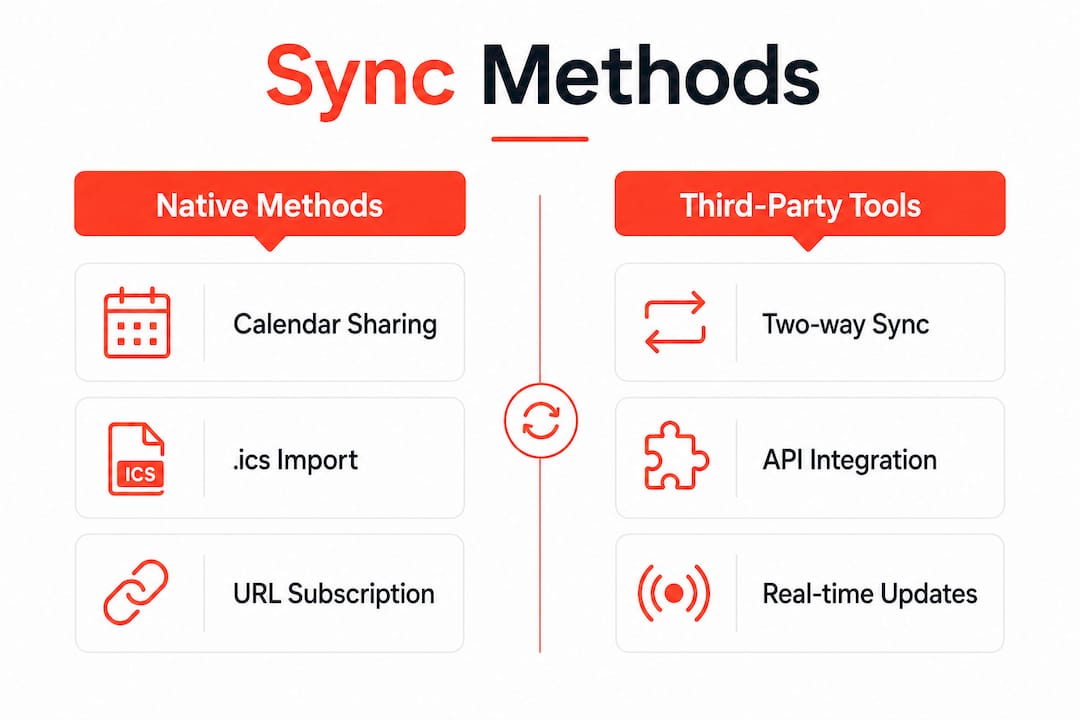
Google offers three native methods: calendar sharing, .ics file import, and URL subscriptions. Each one behaves differently, and none of them delivers full two-way sync across separate accounts or platforms. Calendar sharing provides read-only access and does not convey your availability to scheduling tools that need write access. That means a booking platform cannot block your time based on a shared calendar alone.
Importing an .ics file is even more limited. Both Apple Calendar and Google Calendar support .ics imports as static snapshots. Once imported, those events do not update. If the source calendar changes, your imported copy stays frozen.
URL subscriptions sit between the two. You subscribe to a calendar feed, and Google polls it periodically. The problem is that Google’s polling interval runs 12–24 hours, and users cannot speed it up. Subscribed calendars are also read-only. You can view events but not edit them.
| Method | Sync type | Update frequency | Write access |
|---|---|---|---|
| Calendar sharing | One-way overlay | Real-time view only | No |
| .ics file import | One-time snapshot | Never updates | No |
| URL subscription | One-way pull | Every 12–24 hours | No |
| Third-party webhook tool | Two-way live | ~4 seconds | Yes |
The table makes the gap obvious. Native Google tools cover read-only use cases well. For anything requiring true two-way sync, you need a third-party solution.
How do you set up two-way Google Calendar sync?
True two-way sync for Google Calendar requires a third-party tool that connects to the Google Calendar API using OAuth 2.0 credentials. This is not as technical as it sounds. Most reputable sync tools walk you through the authorisation process in a few clicks.
What you need before you start
Before connecting any tool, confirm you have the following:
- A Google account with Calendar API access enabled (standard for all Google accounts)
- Admin permission on any Google Workspace calendar you want to sync
- The login credentials for the destination calendar, whether that is iCloud, Outlook, or a second Google account
- A clear decision on sync direction: one-way or two-way
Step-by-step setup
- Choose a sync tool that supports the Google Calendar push notifications API. This is what enables near-instant updates.
- Connect your primary Google account using the OAuth 2.0 flow. The tool will request calendar read and write permissions.
- Connect your destination calendar account using the same authorisation process.
- Select the specific calendars you want to sync on each side.
- Choose your sync direction. Two-way sync means changes on either side propagate to the other.
- Set any filters you need. Most tools let you filter by event colour, keyword, or calendar name to control which events sync.
- Save and activate. The tool registers a webhook with Google and begins listening for changes.
Once active, Google Calendar push notifications deliver event changes to the sync tool within about 4 seconds. That is fast enough for practical real-time scheduling.
Pro Tip: Choose a sync tool with a published privacy policy that specifies GDPR compliance and data encryption. Reputable tools use AES-256-GCM encryption and host data within regulated jurisdictions. Full calendar access is a significant permission to grant, so vet the tool before authorising it.
Filtering is worth spending time on. If you sync every event from a personal calendar into a work calendar, colleagues may see personal appointments. Most tools let you mark synced events as “Busy” by default, which protects the details while still blocking your time accurately.
How do you fix Google Calendar sync problems?
Duplicate events are the most common complaint when teams set up calendar sync. Duplicates usually result from sync loops, which occur when multiple apps or devices write to the same calendar simultaneously without a deduplication mechanism. The fix is methodical.
Diagnosing and resolving duplicates
- Open Google Calendar settings and navigate to “Other calendars.” Check which external calendars are subscribed or connected.
- Go to your Google Account’s third-party app permissions page and review every app with calendar access. Revoke access for any app you no longer use.
- Check whether you have both a URL subscription and a sync tool connected to the same source calendar. Running both creates duplicates because each method imports the same events independently.
- If duplicates persist, export the affected calendar as an .ics file, open it in a text editor or spreadsheet tool, remove duplicate entries manually, then import the cleaned file into a fresh calendar. This export-clean-import method is the most reliable way to clear persistent duplicates safely.
- On mobile devices, a forced re-sync often resolves display glitches. On Android, go to Settings, find the Google account, and toggle calendar sync off and on. On iOS, remove and re-add the account under Mail, Contacts, Calendars.
Pro Tip: Recurring events are the most fragile data type in cross-platform sync. Before syncing a calendar that contains recurring events, export a backup copy first. Timezone mismatches between Google Calendar, Apple iCloud, and Microsoft Exchange can corrupt recurring event series in ways that are difficult to reverse.
Cross-platform syncing involving Google Workspace, Apple iCloud, and Microsoft Exchange requires regular checks to catch corrupted recurring events and timezone mismatches early. Set a monthly reminder to review your sync connections and confirm events are appearing correctly on all platforms.
How does calendar sync improve team scheduling?
Teams that rely on calendar sharing alone consistently run into the same problem: scheduling tools cannot read shared calendars as availability data. A shared calendar shows you what a colleague has planned. It does not tell a booking or scheduling platform that the time slot is taken. True team coordination requires API-integrated sync, not sharing overlays.
Two-way sync changes this. When a team member’s personal Google Calendar syncs with a shared team calendar, their availability updates in real time. Features like Google’s “Find a Time” work correctly because the underlying data is accurate. Booking platforms that connect to the team calendar can block slots automatically.
Best practices for teams managing multiple calendars:
- Assign one primary calendar per person for external sync. Syncing every sub-calendar creates noise and increases the risk of duplicates.
- Use read-only sharing for visibility and two-way sync only where write access is genuinely needed. Not every team member needs to edit every calendar.
- Grant third-party tools the minimum permissions required. If a tool only needs to read your calendar, do not grant write access.
- Document which sync tools are active and who authorised them. This makes audits and permission reviews far easier.
- Review sync connections whenever a team member leaves. Revoke their app authorisations as part of the offboarding process.
For venues and entertainment businesses managing public-facing booking slots, the stakes are higher. A sync gap of even 12–24 hours, the kind produced by URL subscriptions, can result in double bookings. Real-time webhook sync eliminates that risk by propagating changes within seconds. Riddlio’s booking calendar for escape rooms is built on this principle, connecting booking data directly to operational schedules without the lag of polling-based methods.
Key takeaways
Google Calendar’s native tools cover read-only use cases, but true two-way sync requires a third-party tool using the Google Calendar push notifications API.
| Point | Details |
|---|---|
| Sharing is not syncing | Calendar sharing gives read-only visibility and does not update scheduling tools with real availability. |
| URL subscriptions lag by hours | Google’s polling interval for subscribed calendars runs 12–24 hours and cannot be shortened by users. |
| Webhooks enable real-time sync | Third-party tools using push notifications propagate changes in about 4 seconds, enabling true two-way sync. |
| Duplicates come from sync loops | Running multiple sync methods on the same calendar simultaneously creates duplicates; audit permissions regularly. |
| Security vetting is non-negotiable | Only authorise sync tools with published GDPR compliance and strong encryption standards. |
The sync mistake I see teams make most often
The most common mistake I encounter is teams treating calendar sharing as a solved problem. They share a calendar, assume everything is connected, and then wonder why their booking platform still shows availability during a booked slot. The confusion is understandable. Google’s interface does not make the distinction between sharing and syncing obvious.
What I have found is that the sharing-versus-syncing gap causes the most damage in high-volume scheduling environments, where a single missed update means a double booking or a missed customer. The 12–24 hour lag from URL subscriptions is not a minor inconvenience in those contexts. It is a genuine operational risk.
My honest recommendation is to treat your sync setup as infrastructure, not a set-and-forget configuration. Check it monthly. Audit your app permissions every quarter. When you add a new tool to your workflow, verify it does not create a duplicate sync path on a calendar that is already connected. Choosing third-party tools with strong privacy policies is not optional if you are syncing calendars that contain client or team data.
The teams that get this right are the ones who understand exactly which method is doing what, and why. That clarity is worth more than any specific tool recommendation.
— REM
How Riddlio connects booking and calendar data for venues
Escape room venues and immersive experience operators face a specific version of the calendar sync problem: every booking must block a slot in real time, or double bookings happen. Riddlio’s escape room booking system connects booking management, payment processing, and operational scheduling into one platform, so your calendar reflects confirmed bookings the moment they are made. There is no polling lag and no manual update required. Venues using Riddlio also benefit from automated SMS reminders tied directly to booking data, reducing no-shows without any additional calendar configuration. If your venue is managing slots across multiple rooms or sessions, Riddlio’s reservation system gives you a live operational view that keeps your schedule accurate at all times.
FAQ
What is the difference between Google Calendar sharing and syncing?
Calendar sharing gives other users read-only visibility of your events. Syncing creates a live, two-way connection where changes on either side update both calendars automatically.
Why do I have duplicate events in Google Calendar?
Duplicate events typically result from sync loops caused by multiple apps or devices writing to the same calendar simultaneously. Auditing and revoking unused app permissions resolves most cases.
How do I add an ICS file to Apple Calendar?
Open the .ics file on macOS or iOS and Apple Calendar will prompt you to import it. The import creates a static snapshot; it does not create a live sync with the source calendar.
How fast does two-way Google Calendar sync update?
Third-party tools using the Google Calendar push notifications API propagate changes in approximately 4 seconds. URL-based subscriptions, by contrast, update every 12–24 hours.
Is it safe to grant a third-party app access to Google Calendar?
It is safe when the tool has a published privacy policy, uses strong encryption such as AES-256-GCM, and complies with GDPR. Always revoke access for tools you no longer use.